
Installation
Quick start
The easiest way to start a new Fedify project is to use the fedify init command. It creates a new directory with a minimal Fedify project template.
CLI toolchain
First of all, you need to have the fedify command, the Fedify CLI toolchain, installed on your system. If you haven't installed it yet, please follow the following instructions:
npm install -g @fedify/clibrew install fedifyscoop install fedifybun install -g @fedify/clideno install -gA --unstable-fs --unstable-kv -n fedify jsr:@fedify/cliIf you use Deno earlier than 2.7.0, add --unstable-temporal to the Deno installation command above.
There are other ways to install the fedify command. Please refer to the Installation section in the CLI toolchain docs.
Project setup
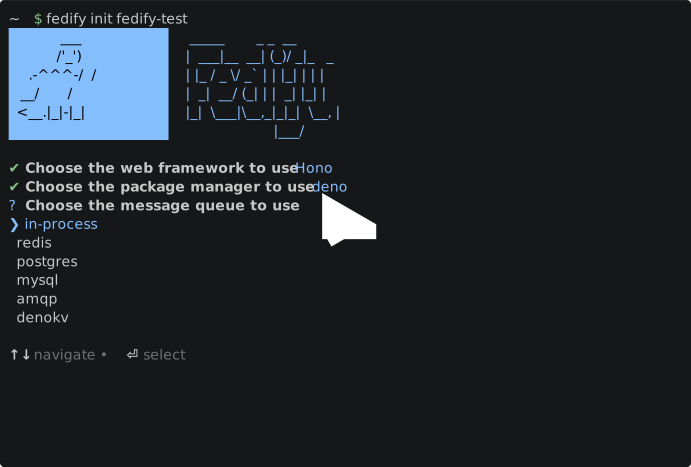
After installing the fedify command, you can create a new Fedify project by running the following command:
fedify init your-project-dirThe above command will start a wizard to guide you through the project setup. You can choose the JavaScript runtime, the package manager, and the web framework you want to integrate Fedify with, and so on. After the wizard finishes, you will have a new Fedify project in the your-project-dir directory.
For more information about the fedify init command, please refer to the fedify init section in the CLI toolchain docs.
Alternative: Using @fedify/create
If you don't want to install the fedify CLI globally, you can use @fedify/create directly:
npm init @fedify your-project-dirpnpm create @fedify your-project-diryarn create @fedify your-project-dirbunx @fedify/create your-project-dirThis works the same way as fedify init and will guide you through the same project setup wizard.
TIP
Already running a federated service on another JavaScript ActivityPub library? See Migrating from other libraries for guides covering activitypub-express, @activity-kit/*, hand-rolled Express code, and activitystrea.ms.
Manual installation
Fedify is available on JSR for Deno and on npm for Bun and Node.js.
Deno
Deno is the primary runtime for Fedify. As a prerequisite, you need to have Deno 2.0.0 or later installed on your system. Then you can install Fedify via the following command:
deno add jsr:@fedify/fedifyFedify requires the Temporal API. On Deno 2.7.0 or later, it is stable and no extra setting is needed. On Deno versions earlier than 2.7.0, add "temporal" to the "unstable" field in deno.json:
{
  "imports": {
    "@fedify/fedify": "jsr:@fedify/fedify"
  },
  "unstable": ["temporal"]
}
Bun
Fedify can also be used in Bun. You can install it via the following command:
bun add @fedify/fedifyNode.js
Fedify can also be used in Node.js. As a prerequisite, you need to have Node.js 22.0.0 or later installed on your system. Then you can install Fedify via the following command:
npm add @fedify/fedifypnpm add @fedify/fedifyyarn add @fedify/fedifyWe recommend using ESM with Fedify by adding "type": "module" to the package.json file. While Fedify also supports CommonJS for legacy compatibility, ESM is the preferred approach:
{
  "type": "module",
  "dependencies": {
    "@fedify/fedify": "^1.8.1"
  }
}
Editor setup
fedify init configures Visual Studio Code for you out of the box. Setting up Zed takes a few extra steps because fedify init does not generate .zed/ files yet.
Visual Studio Code
For Deno projects, fedify init writes a .vscode/extensions.json that recommends the Deno extension:
{ "recommendations": ["denoland.vscode-deno"] }The matching .vscode/settings.json turns on Deno's language server and sets it as the default formatter for JavaScript and TypeScript:
{
  "deno.enable": true,
  "deno.unstable": true,
  "editor.detectIndentation": false,
  "editor.indentSize": 2,
  "editor.insertSpaces": true,
  "[typescript]": {
    "editor.defaultFormatter": "denoland.vscode-deno",
    "editor.formatOnSave": true,
    "editor.codeActionsOnSave": {
      "source.sortImports": "always"
    }
  }
  // The same block applies to [javascript], [javascriptreact], and
  // [typescriptreact]; [json] and [jsonc] use "vscode.json-language-features".
}
Deno's Set up your environment guide covers other editors and shells.
For Node.js/Bun projects, fedify init writes a .vscode/extensions.json that recommends the Biome extension and the ESLint extension:
{ "recommendations": ["biomejs.biome", "dbaeumer.vscode-eslint"] }The matching .vscode/settings.json sets Biome as the default formatter and runs Biome's import organiser on save:
{
  "editor.detectIndentation": false,
  "editor.indentSize": 2,
  "editor.insertSpaces": true,
  "[typescript]": {
    "editor.defaultFormatter": "biomejs.biome",
    "editor.formatOnSave": true,
    "editor.codeActionsOnSave": {
      "source.organizeImports.biome": "always"
    }
  }
  // The same block applies to [javascript], [javascriptreact],
  // [typescriptreact], [json], and [jsonc].
}
If you prefer Oxc over Biome and ESLint, install the oxc-vscode extension and swap the formatter:
{
  "[typescript]": {
    "editor.defaultFormatter": "oxc.oxc-vscode",
    "editor.formatOnSave": true,
    "editor.codeActionsOnSave": {
      "source.fixAll.oxc": "always"
    }
  }
}
Zed
TIP
fedify init does not generate .zed/ configuration; the snippets below need to be added by hand.
For Deno projects, create .zed/settings.json that enables the Deno language server and uses it as the formatter for TypeScript and JavaScript. The ! prefix disables the bundled TypeScript and ESLint servers so they do not compete with Deno:
{
  "lsp": {
    "deno": {
      "settings": { "deno": { "enable": true } }
    }
  },
  "languages": {
    "TypeScript": {
      "formatter": [
        { "language_server": { "name": "deno" } }
      ],
      "language_servers": [
        "deno",
        "!typescript-language-server",
        "!vtsls",
        "!eslint",
        "!biome",
        "..."
      ]
    }
    // The same block applies to TSX and JavaScript.
  }
}
Zed's Deno language docs cover the available options. Hackers' Pub is a real-world reference.
For Node.js/Bun projects, Zed enables its bundled TypeScript language server out of the box; the typical addition is wiring up Biome (or the formatter you chose) for editor.formatOnSave-style behaviour. See Zed's TypeScript language docs for setup. If you prefer Oxc instead, set Oxc as the language server and turn on its fix-all action on format:
{
  "language_servers": ["oxc", "..."],
  "code_actions_on_format": {
    "source.fixAll.oxc": true
  }
}
Linting
fedify init configures the @fedify/lint plugin automatically: Deno projects pick it up through lint.plugins in deno.json, and Node.js/Bun projects through a generated eslint.config.ts. For the full rule list, configuration options, and how to run the linter, see the Linting chapter.
Agentic skill
This skill is available since Fedify 2.2.0.
Fedify ships a Markdown skill file that AI coding assistants such as Claude Code, Codex, or OpenCode can load to learn Fedify's APIs, common pitfalls, and recommended patterns. The file lives inside the @fedify/fedify package itself, so the only remaining step is exposing it to your agent's skills directory.
Node.js/Bun
Use skills-npm, a third-party tool by Anthony Fu (it is not a Fedify package), that scans node_modules for packages exposing the agents.skills field in their package.json and links them into your agent's skills directory on every install.
Install
skills-npmas a dev dependency:shnpm add -D skills-npmshpnpm add -D skills-npmshyarn add -D skills-npmshbun add -D skills-npmAdd a
preparescript to your package.json so it runs after every install:json{ "scripts": { "prepare": "skills-npm" } }Reinstall once. The Fedify skill appears at .claude/skills/fedify/ (and similar locations for other supported agents).
The same script picks up other Fedify packages and any third-party npm packages that adopt the convention.
Deno
NOTE
Automated installation for Deno is not available yet, so the skill must be installed by hand for the time being. Future automation through the Claude Code plugin marketplace is tracked in issue #489.
Pick your agent's skills directory. For Claude Code, this is .claude/skills/fedify/.
Download SKILL.md from the Fedify repository:
shmkdir -p .claude/skills/fedify curl -L -o .claude/skills/fedify/SKILL.md \ https://raw.githubusercontent.com/fedify-dev/fedify/main/packages/fedify/skills/fedify/SKILL.mdEither commit the file or add it to .gitignore, depending on your team's preference.